Turn AI answers on or off
AI answers on 4Search are off until you allow them. One setting, AI-assisted answers in your privacy choices, covers both the AI Overview and AI Mode, in the browser where you set it.
#Turn them on
The quickest way is from the feature itself:
- In the AI Overview box on a results page, select Allow AI Answers.
- In AI Mode, send a question and select Allow AI answers in the notice above the message box. Your question is sent straight after.
Or use the privacy window, as below, and switch on AI-assisted answers.
#Turn them on or off in your privacy choices
-
Open Menu › Your Privacy Choices and select Open Privacy Choices. Or select the round shield button in a corner of the page, or Manage privacy choices in an AI box.
-
In the Privacy choices window, find AI-assisted answers.
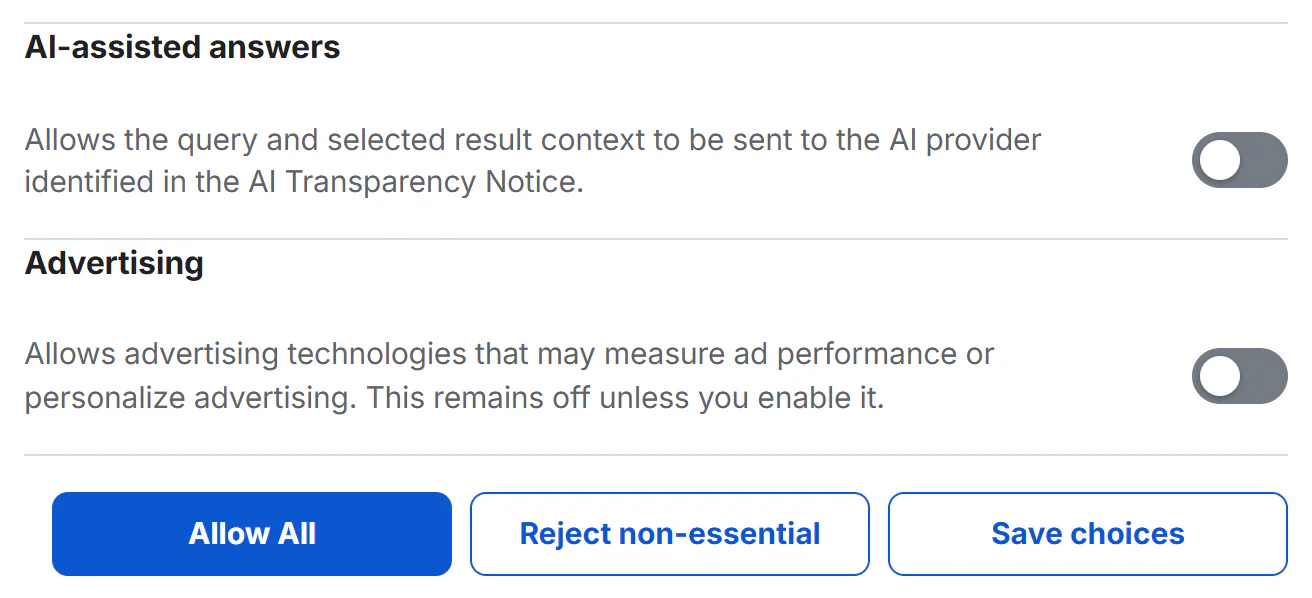
The AI-assisted answers switch, off as it is for every new visitor.
- 1The AI-assisted answers category
- 2Its switch: off until you turn it on
- 3Allow All turns on every optional category
- 4Save choices keeps your switches as set
-
Turn its switch on or off.
-
Select Save choices. (Allow All turns on every optional category, and Reject non-essential turns them all off, AI answers included.)
With AI answers off, the AI Overview box shows only the offer to allow them, and AI Mode asks for permission before it sends anything. Everything else on the site works as before.
See Your privacy choices for the other categories in the same window.
#Common questions
Does turning AI answers off delete anything?
It stops anything new from being sent to the AI provider from this browser. An AI Mode conversation on screen stays until you start a new chat or close the tab.
I allowed AI answers but the box still asks. Why?
The choice may not have been saved: private windows, blocked cookies or a content blocker can prevent it. Allow it again, or see Troubleshooting.
Can I keep AI Mode and hide only the overview?
No. One switch covers both features.